Document AI reads accurately not because of the AI alone, but because it has been configured for an organisation's own documents — the document types, the fields that matter, the instructions that tell the AI how to read them, and where the data has to go.
That configuration is the part that takes time, and it needs someone who really knows the system.
The problem is not the AI. It is the configuration.
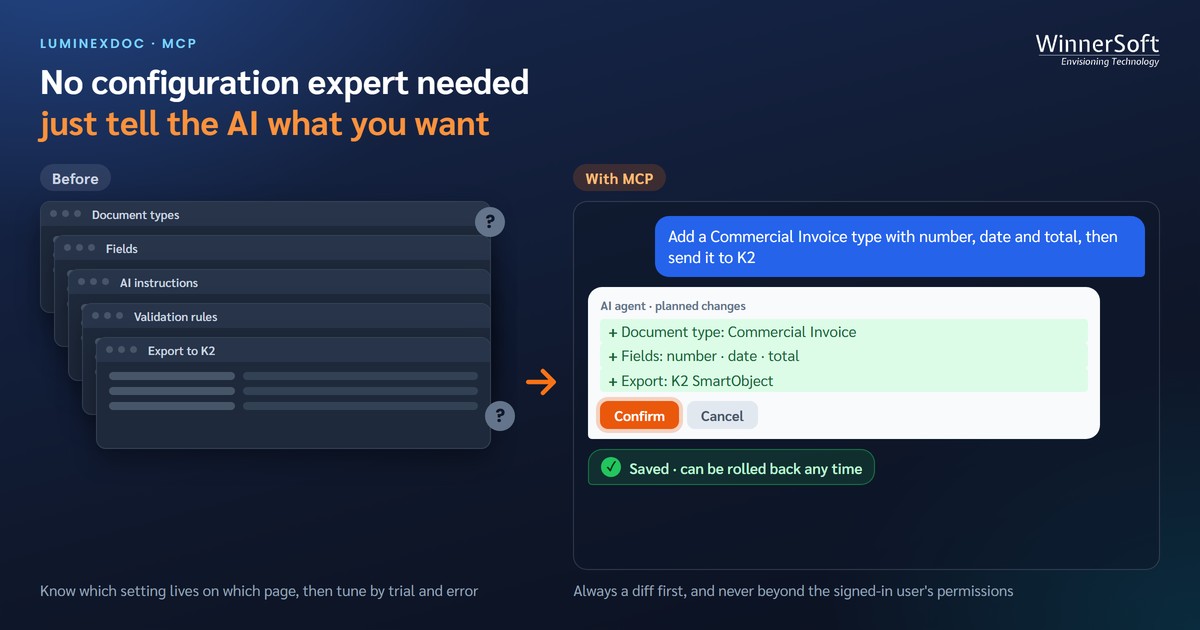
Picture the day finance asks for one more kind of document to be read. An administrator has to:
- Create the new document type, then define each field and its data type
- Write additional instructions telling the AI how to read particular fields, such as Thai Buddhist-era dates or a total at the bottom of a table
- Set validation rules, and matching rules against other documents
- Map the fields to the destination system, such as K2 or SQL Server
Each step lives on a different settings page. Anyone who does not already know where things are has to learn the system first.
Tuning is harder still. When one field is misread again and again, the administrator has to know where the fix belongs — the AI instructions, the field definition or the validation rules — then reprocess, compare, and repeat until it is right. That takes hands-on experience with the system.
The result is that most organisations have only a few people who can really configure it, and every change request waits in their queue, or the vendor's.
MCP turns "know where to set it" into "say what you want"
MCP (Model Context Protocol) is an open standard that lets AI agents work with other systems directly. LuminexDoc now has an MCP server built in, and works with Claude (claude.ai, Claude Desktop and Claude Code), Codex CLI, Gemini CLI and Cursor.
Once connected, the agent can read the system's current configuration and knows where each change belongs. Users no longer need to remember the settings pages: they say what they want in plain language, and the agent gathers work spread across several pages into one plan to review.
What you can ask and change
| You type | The agent |
|---|---|
| "Did this morning's batches all go through? Is anything stuck?" | Checks the batches and points out the documents with problems |
| "Which fields does the invoice process have, and where does each go?" | Reads the current configuration and summarises it |
| "Show me this document" | Shows what the AI read in each field, the way a reviewer sees it on the validation screen |
| "Add a Commercial Invoice type with number, date and total, then send it to K2" | Creates the document type, the fields and the K2 mapping in one plan |
| "Always read the date on tax invoices as a Buddhist-era year" | Proposes a change to the additional instructions the AI uses for that document type |
| "Match invoices to purchase orders by PO number" | Sets a cross-document matching rule |
| "Also send receipts to a table in SQL Server" | Maps the fields to the destination table |
Tuning gets shorter too. When a field is misread, let the agent open that document and propose how the instructions or the field definition should change. You confirm, then reprocess on the validation screen to see the result — without hunting for which page to fix.
Every change goes through a person first
Easier configuration must not come at the cost of risk. A system that reads an organisation's financial documents every day should not be changed on the assumption that the agent understood correctly. Every change goes through four steps:
| Step | What happens |
|---|---|
| 1. Plan | The agent prepares the list of changes. Nothing is saved yet. |
| 2. Diff | You see the old and new values side by side, item by item. |
| 3. Confirm | Only when a person confirms does the agent save the change. |
| 4. Roll back | Every change is recorded and can be reversed later. |
Many AI clients offer to auto-approve tool calls. We recommend never turning that on for LuminexDoc's confirm and roll-back commands — the confirmation step is the whole safety check.
An agent can do no more than the person signed in
- The agent acts as the signed-in user, with that user's permissions and process scope every time. If a page is closed to the user, it is closed to the agent.
- Some settings, such as K2 and SQL Server mappings, are limited to top-level administrators.
- Passwords for destination systems and Custom Script secrets never pass through MCP. They are typed on the web page only.
- Users see their connected apps on their own profile page and can disconnect any of them at once.
What an agent cannot do — on purpose
An agent can configure the system, but it does not approve documents on anyone's behalf. Uploading, approving, rejecting and reprocessing documents remain a person's job on the validation screen.
How to connect
- Claude Code, Codex CLI, Gemini CLI and Cursor — create a token on your LuminexDoc profile page and add it to the client's settings
- claude.ai and Claude Desktop — add LuminexDoc as a connector, sign in and press Allow once, with no token to copy (the server must be reachable from the internet over HTTPS)
- MCP is enabled as a licence add-on
Who benefits
- Your administrators — no need to remember which setting lives where, and change requests are handled sooner
- Teams without a LuminexDoc expert yet — the agent proposes how to add documents and tune accuracy, and someone with settings access reviews and confirms
- The experts you already have — less time on repetitive changes, more on the work that needs real expertise
To enable MCP on your organisation's LuminexDoc, or to see it working, contact the WinnerSoft team through our contact page.